Best Malware Removal Tools – The Ultimate Guide to Free & Paid Scanners
Published: 01 Nov 2025
Best Malware Removal Tools are essential for anyone who uses a computer daily. I’ve been there—one moment, your PC is running fine, and the next, strange pop-ups appear, programs slow down, and files act weird. That panic is real, and I’ve faced it myself.
Finding a reliable malware scanner can be confusing. Some tools are free but miss threats. Others are paid but expensive. You need something that works, protects your data, and doesn’t slow your computer. In this guide, I’ll share what I’ve tested personally and which tools I trust to keep computers safe.
1. How Malware Removal Tools Work
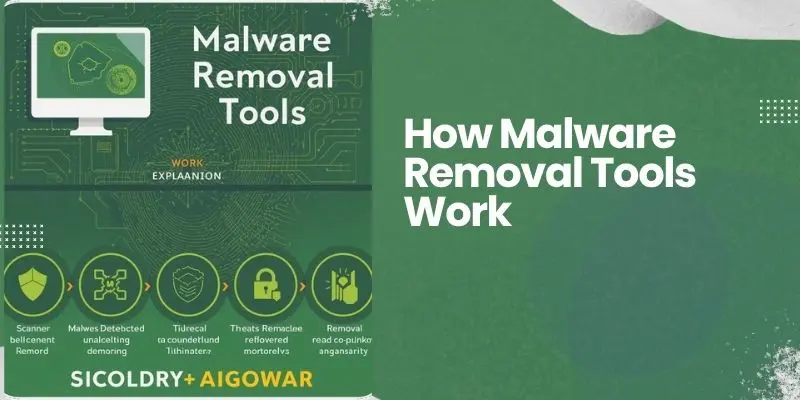
Think of a malware removal tool as a smart security guard for your computer or business systems. This guard uses three main methods to find and kick out bad software: checking a “most wanted” list, looking for suspicious behavior, and constantly watching for new troublemakers.
Just like comparing Free vs. Paid AI Tools for Startups, some malware removal tools are free but limited, while paid ones offer stronger protection, smarter detection, and faster performance for serious users.
1. Checking the “Most Wanted” List: Signature-Based Detection
This is the most basic way the tool finds malware. Every piece of malware has a unique digital fingerprint, called a signature. The security companies keep a huge database of these known fingerprints.
How it works: When you run a scan, the tool carefully checks every file on your computer. It compares them against its database of malware signatures. If it finds a file with a matching fingerprint, it immediately quarantines or deletes it.
Simple Analogy: It’s like a bouncer at a club checking an ID against a list of known troublemakers. If the name and photo match, the person is not allowed in.
2. Looking for Suspicious Behavior Heuristic Analysis
But what about brand-new malware that isn’t on the “most wanted” list yet? This is where heuristic analysis comes in. “Heuristic” is a smart word for “learning by discovery.” Instead of looking for a perfect match, the tool looks for code that acts like malware.
How it works: The tool runs files in a safe, isolated space (like a sandbox) and watches what they try to do. Does the file try to hide itself? Does it try to delete a lot of important system files? Does it attempt to contact a suspicious server? If a file acts in enough suspicious ways, the tool will flag it as potential malware, even if it’s never been seen it before.
Simple Analogy: The bouncer sees someone who isn’t on the list, but that person is lurking near the back door, wearing a ski mask, and carrying crowbars. The bouncer doesn’t need to know their name to know they are up to no good.
3. Constant Watch Real-Time Protection
Scanning is great, but what stops a virus from getting in the moment you click a bad link? That’s the job of real-time protection (also called on-access scanning).
How it works: This feature is always running in the background. It automatically checks every file the moment you try to open it, run it, or save it. It works with both signature-based and heuristic analysis to block threats before they can infect your system.
Simple Analogy: This is no longer a bouncer checking people at the door. This is having security cameras and guards actively patrolling the club at all times, ready to stop a fight the second it starts.
In summary, A good malware removal tool doesn’t rely on just one method. It uses signature-based detection to catch known threats, heuristic analysis to find new and unknown threats, and real-time protection to stop them all in their tracks, keeping your computer safe 24/7.
2. Top-Rated Malware Removal Software Expert Picks
With so many options available, choosing a malware removal tool can feel overwhelming. To make it easier, we have tested the most popular software and created a curated list of the most effective and reliable ones.
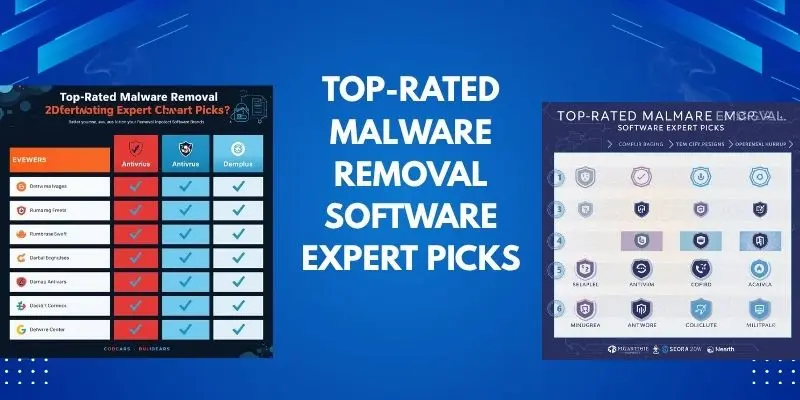
These tools are consistently praised by security experts for their strong protection and ease of use. Much like comparing Best AI Tools vs. Traditional Software, modern malware removal programs use advanced AI detection methods that outperform older, rule-based systems in both accuracy and speed.
Here are our top picks for keeping your computer safe:
1. Bitdefender Antivirus Plus All-Around Champion
Bitdefender is often at the top of the list for a reason. It offers a powerful combination of high malware detection rates and a simple interface that doesn’t slow down your computer.
- Best For: Users who want strong, reliable protection without any complicated settings.
- Key Features: Excellent real-time protection, a safe browsing tool, and a built-in VPN for extra privacy.
2. Norton 360 Deluxe Feature-Rich Powerhouse
If you want more than just malware protection, Norton is a great choice. It bundles many useful security tools into one package, protecting your entire digital life.
- Best For: Families or users who want extra features like a password manager, cloud backup, and a full-featured VPN.
- Key Features: Top-notch malware scanning, dark web monitoring for your personal info, and parental controls.
3. Malwarebytes The Specialist Cleaner
Malwarebytes is famous for its ability to find and remove threats that other programs miss. Many people use it alongside another antivirus for a powerful “one-two punch” against malware.
- Best For: Dealing with a current infection or as a second-opinion scanner for extra safety.
- Key Features: Very effective at rooting out adware and potentially unwanted programs (PUPs), with a simple, one-click scan.
4. Avast One Essential Free Option
For those on a budget, Avast offers a robust free plan that covers the essentials. It provides solid malware protection and includes some nice extra features you don’t always get for free.
- Best For: Anyone looking for reliable, free protection that is easy to use.
- Key Features: Strong malware scanning, a network security inspector, and a limited free VPN.
Why We Picked These Tools
We selected these programs because they consistently prove themselves in independent tests. They are reliable, effective, and offer a good experience for the user, whether you are a tech expert or a beginner. Choosing any of these will provide you with a strong defense against online threats.
3. In-Depth Review Bitdefender Antivirus Plus
Bitdefender Antivirus Plus is widely considered one of the best security programs you can get. It’s like having a high-tech security system for your computer that works quietly in the background. Let’s take a closer look at what makes it so good, and who it’s best for.
What is Bitdefender Antivirus Plus?
This is Bitdefender’s standard paid plan for one computer. It’s not just a simple scanner; it’s a complete security package. It uses multiple layers of protection to stop threats before they can cause harm, which is what we mean by “multi-layered protection.”
Key Features and What They Do For You
- Superior Malware Protection: At its core, Bitdefender is brilliant at finding and blocking viruses, ransomware, and spyware. It uses a mix of its huge signature database and smart behavioral analysis to catch both old and new threats.
- Real-Time Protection (Shield): This is your 24/7 guard. It automatically checks every file you open, every website you visit, and every program you run, stopping bad stuff the moment it tries to activate.
- Safe Pay: This is a special feature for online banking and shopping. It opens a protected, isolated browser window when you visit your bank or payment sites. This ensures that keyloggers or spyware cannot steal your passwords or credit card details.
- VPN (Virtual Private Network): The plan includes a free VPN, but it has a data limit (200 MB per day). This is useful for securing your connection on public Wi-Fi, but for unlimited browsing, you’d need to upgrade.
- Multi-Layer Ransomware Protection: This is a standout feature. Bitdefender specifically watches for the kind of behavior ransomware uses—like trying to encrypt your personal files—and blocks it immediately, keeping your photos and documents safe.
The Advantages (Pros)
- Powerful and Effective: It consistently gets top scores from independent labs for its ability to find and block malware.
- Easy to Use: The interface is clean and simple. You can install it and forget about it, as it works automatically.
- Low Performance Impact: Despite its power, it is designed to be light on your system and won’t slow down your computer.
- Great Extra Features: Tools like Safe Pay and the limited VPN add real value and security.
The Disadvantages (Cons)
- The VPN is Limited: The 200 MB daily data cap is only good for very quick tasks, not for streaming or heavy browsing.
- Can Have Too Many Pop-ups: Some users find that it shows too many notifications, suggesting you upgrade to a more expensive plan.
- Price Can Increase: The first year is often offered at a discount, and the price can go up when you renew.
Who Should Use Bitdefender Antivirus Plus?
This software is perfect for the everyday user who wants “set it and forget it” protection. If you want a powerful program that runs reliably in the background without requiring you to be a tech expert, Bitdefender is an excellent choice. It’s especially good for people who do a lot of online banking and shopping and want that extra layer of security.
In summary, Bitdefender Antivirus Plus offers a fantastic blend of top-tier protection, useful features, and ease of use, making it a champion in the cybersecurity world.
4. The Best Free Malware Removal Tools
Not everyone can pay for expensive software, but that doesn’t mean you have to be unprotected. Luckily, there are powerful free tools that provide a strong shield against malware. These are perfect for users on a budget or anyone who wants to try a scanner before buying. Here’s a look at the best free options and what they can do for you.
1. Malwarebytes Free Specialist Emergency Tool
Think of Malwarebytes Free as your digital ambulance. It’s not designed to run in the background all the time, but it’s brilliant for emergency “rescue” scans.
- How it Works: You download and run it manually whenever you suspect a problem. It excels at finding and removing tough threats like adware, spyware, and potentially unwanted programs (PUPs) that other scanners might miss.
- Best For: Anyone who needs a second opinion or is dealing with a current infection, like pop-ups and browser hijackers.
- Limitation: The free version does not include real-time protection. It’s a scanner, not a constant guard.
2. Avast One Essential / AVG Antivirus Free All-in-One Guard
Avast and its sister program, AVG, offer some of the most full-featured free antivirus suites available. They are like having a full-time security guard who works for free.
- How it Works: These tools provide essential real-time protection against viruses and malware. They also include useful extras like a network scanner to check your home Wi-Fi for weaknesses and limited protection against unsafe websites.
- Best For: Users who need constant, real-time protection and don’t want to pay for it. It’s a great “set it and forget it” free option.
- Limitation: They may occasionally show prompts encouraging you to upgrade to the paid version.
3. Bitdefender Antivirus Free Edition Simple & Strong Scanner
Bitdefender Free is all about power and simplicity. It offers the same strong malware-scanning engine as the paid version but without the extra features.
- How it Works: It focuses only on what’s most important: real-time antivirus protection. It runs quietly in the background, blocking threats automatically with a very simple, easy-to-use interface.
- Best For: Users who want strong, automatic protection without any complicated settings or extra features.
- Limitation: It is a basic antivirus and does not include a firewall or other bonus tools like a VPN.
4. Emsisoft Emergency Kit Portable Scanner
This is a unique and valuable tool. The Emsisoft Emergency Kit is “portable,” meaning you don’t have to install it. You can run it directly from a USB stick.
- How it Works: This is a powerful on-demand scanner. If your computer is so infected that you can’t install software, you can download this kit on another computer, put it on a USB drive, and run it on the sick PC.
- Best For: Emergencies where your computer is already infected and other programs won’t run.
- Limitation: It is a manual scanner only, with no real-time protection.
Is Free Protection Good Enough?
For many users, yes. A free tool like Avast One Essential or Bitdefender Free provides a solid base layer of protection that is far better than having nothing at all.
However, it’s important to know the trade-offs. Free versions often lack bonus features like a secure firewall, a VPN, or a password manager. For maximum security, especially if you bank online or store sensitive data, a paid program is recommended. But for basic, essential protection, these free tools are an excellent starting point.
5. Specialized Tools for Different Needs
Malware doesn’t just target Windows computers. It can affect Macs, smartphones, and it can sometimes be so stubborn that normal scanners can’t remove it. For these special situations, you need a specialized tool. Here’s a guide to solutions for different devices and tough problems.
1. For Apple Mac Computers, macOS Security
Many people believe Macs can’t get viruses, but this is a myth. While less common, Mac-specific malware exists and is growing. Luckily, there are tools made just for macOS.
- Bitdefender Antivirus for Mac: This provides the same strong protection as the Windows version in a design that feels right at home on a Mac. It quietly blocks viruses, ransomware, and adware without slowing down your system.
- Malwarebytes for Mac: This is a very popular choice for Mac users. Its free version is perfect for a quick scan and clean-up if you notice your browser acting strangely or you suspect an infection.
- How to Choose: If you want constant, real-time protection, choose Bitdefender. If you just want a reliable scanner to use every now and then, Malwarebytes is perfect.
2. For Mobile Devices, Android and iPhone Protection
Our phones contain our personal photos, messages, and banking apps, making them valuable targets.
- For Android Phones: Android is more open, so it’s more vulnerable to malware from app stores outside of the Google Play Store. A good free tool like Avast Mobile Security or Bitdefender Mobile Security can scan your apps for malware, check if your Wi-Fi network is safe, and help you locate your lost phone.
- For iPhones (iOS): Apple’s “walled garden” approach makes it much harder for traditional malware to infect your iPhone. You usually don’t need an antivirus app. The best protection is to keep your iOS software updated and only download apps from the official App Store. Security apps for iOS mainly focus on protecting your web browsing and helping if your phone is stolen.
3. For Persistent and Tough Threats Emergency Kits
Some malware is like a weed with deep roots; a normal scanner might not be able to fully remove it. This is where dedicated emergency tools come in.
- Emsisoft Emergency Kit (EEK): As mentioned before, this is a portable, powerful scanner that doesn’t require installation. It’s perfect for when your computer is already infected and you can’t install standard software.
- Kaspersky Virus Removal Tool: This is another free, on-demand scanner from a major security company. It’s great for a second opinion and can often find and remove threats that other programs have missed.
- How to Use Them: If your computer is acting very strangely, download one of these tools on a different, clean computer, save it to a USB drive, and then run it on the infected PC.
The Right Tool for the Job
Using the right tool makes all the difference.
- Use Mac-specific software for your Apple computer.
- Use a mobile security app for your Android phone.
- And if a standard scan fails, turn to a dedicated emergency kit to rescue your infected PC.
By understanding these specialized options, you can protect all your devices effectively.
6. Key Factors to Consider When Choosing a Tool
With so many options available, how do you pick the right malware removal tool for you? It’s not just about which one is the most famous. To find your perfect match, you should think about a few key factors. Here’s a simple guide to help you evaluate your options.
1. Detection Rate: Most Important Job
This is the tool’s ability to correctly find and identify malware. You want a program that is like a detective with a great eye for catching criminals.
- What to look for: Choose tools that have high scores in independent lab tests (from organizations like AV-Comparatives or SE Labs). A high detection rate means the software is very good at spotting both widespread and brand-new threats.
- Ask yourself: “Does this tool have a proven record of successfully finding malware?”
2. System Performance Lightweight Champion
Some security programs can slow down your computer, making it feel old and sluggish. A good tool should protect you without getting in your way.
- What to look for: Look for software described as “lightweight” or having a “low system impact.” It should run scans and real-time protection without making your computer slow, especially during everyday tasks like browsing the web or watching videos.
- Ask yourself: “Will this software let me use my computer normally, or will it be a nuisance?”
3. Ease of Use “Set It and Forget It” Principle
You shouldn’t need to be a tech expert to stay safe. The best tools are easy for anyone to use, following a no-code/low-code (NC/LP) principle. This means they work well without requiring you to set up complicated configurations.
- What to look for: A clean, simple interface with clear options. The default settings should be strong enough for most users. One-click scanning and automatic updates are signs of a user-friendly design.
- Ask yourself: “Can I easily understand and use this software, or is it confusing?”
4. Extra Features Getting More Value
Beyond basic malware scanning, many tools offer bonus features that can improve your overall security and privacy.
- Common Extra Features:
- VPN (Virtual Private Network): Encrypts your internet connection for privacy on public Wi-Fi.
- Password Manager: Helps you create and store strong, unique passwords.
- Firewall: Monitors and controls incoming and outgoing network traffic.
- Parental Controls: Helps you manage your children’s online activity.
- Ask yourself: “What extra needs do I have? Do I need a VPN for privacy, or a password manager?”
5. Cost and Value Free vs. Paid
Finally, consider your budget. Free tools offer great essential protection, but paid versions provide more complete security.
- Free Tools: Best for basic, real-time protection and on-demand scanning. Good for users with a tight budget.
- Paid Tools: Best for comprehensive security, including all the extra features like VPNs, firewalls, and identity theft protection. Good for those who want an “all-in-one” solution.
In summary, the best tool for you balances strong detection rates, low system impact, and ease of use, while also offering the extra features you need at a price you’re willing to pay.
7. Malware Removal vs. Traditional Antivirus
Many people use the terms “antivirus” and “malware removal tool” as if they mean the same thing. While they are related, they have different, important jobs. Understanding this difference helps you build a stronger defense for your computer.

Think of it like this:
- A Traditional Antivirus is like a preventive security guard. Its main job is to stop threats from getting in the first place.
- A Malware Removal Tool is like a specialized cleaner. Its main job is to come in and scrub the place clean after an infection has already happened.
Here’s a clearer breakdown of their distinct roles:
Traditional Antiviral Preventive Shield
This is your everyday, always-on protection. It works to block threats before they can infect your system.
- Primary Goal: Prevention. It focuses on stopping viruses, worms, and other malware from entering your computer.
- How it Works: It uses real-time protection to constantly monitor your computer. It checks every file you download, every email you open, and every website you visit, blocking anything that looks suspicious.
- Best For: Your first line of defense. It’s essential software that should be running on every computer all the time to keep it safe from common threats.
Malware Removal Tool The Curative Cleaner
These tools are specialists in finding and destroying malware that is already on your device. They are experts at “curing” an infection.
- Primary Goal: Remediation and Cleaning. They are designed to dig deep into your system, find hidden, stubborn, or already-installed malware, and remove it completely.
- How it Works: They are often used as on-demand scanners. You run them when you suspect a problem (like pop-ups, slow performance, or browser hijacking) to perform a deep scan and clean out the infection.
- Best For: Emergencies or as a second opinion. They are perfect for removing annoying adware, spyware, and other pests that might have slipped past your main antivirus.
How They Work Together
The best security strategy uses both types of programs together.
- You use a traditional antivirus suite (like Bitdefender or Norton) as your main, always-on guard. This prevents most attacks.
- If you still get infected—which can happen with new or very tricky malware—you then use a specialized malware removal tool (like Malwarebytes) to scan your system and clean out what the first line of defense missed.
In simple terms, your antivirus tries to lock the door to keep the burglars out. A malware removal tool is what you call to remove a burglar who is already inside your house.
Most modern Internet Security Suites (paid antivirus packages) now combine both functions. They have strong real-time protection and powerful cleaning capabilities. However, keeping a dedicated malware removal tool on hand is still a smart practice for dealing with the most persistent infections.
8. Proactive Protection: How to Stay Safe After Removal
Removing malware from your computer is a great first step, but it’s like getting better after being sick—you want to stay healthy. The goal is to prevent another infection from happening. This is called proactive protection. Here are the best practices to keep your device secure in the long run.
1. Keep Everything Updated
Think of updates as booster shots for your software. They often contain fixes for security holes that hackers love to exploit.
- Operating System: Always install the latest updates for Windows, macOS, or your mobile OS. Turn on automatic updates if you can.
- Apps and Browsers: Update your web browser, email program, and all other software, especially programs like Adobe Reader or web plugins.
2. Use Strong, Unique Passwords
Reusing the same password everywhere is like using one key for your house, car, and office. If a hacker steals it, they have access to everything.
- What to do: Use a password manager. This is a tool that creates and stores complex, unique passwords for all your accounts. You only need to remember one master password.
3. Be Smart About What You Click
You are the most important layer of security. Always think before you click.
- Suspicious Links: Don’t click on links in strange emails or text messages, even if they look like they’re from a company you know.
- Email Attachments: Only open attachments from people you trust and that you were expecting.
- Downloads: Only download software from official websites like the Microsoft Store, Apple’s App Store, or the developer’s official site. Avoid “cracked” software or free movie downloads.
4. Leverage Your Security Tools
Your security software has features designed specifically for ongoing protection. Make sure you are using them.
- Real-Time Protection: Always keep this turned on. It is your 24/7 guard that blocks threats the moment they appear.
- Intelligent Firewall: A firewall is a digital barrier between your computer and the internet. It controls what data is allowed in and out. An “intelligent” or two-way firewall monitors both incoming and outgoing traffic, stopping malware from “phoning home” with your stolen data.
- Automatic Updates: Ensure your security software is set to update itself automatically. This gives it the latest “most wanted” list (virus definitions) to catch new threats.
5. Back Up Your Important Files
This is your ultimate safety net. If a very bad virus (like ransomware) ever locks your files, a recent backup means you can simply erase your computer and restore your files.
- The 3-2-1 Rule: Keep 3 copies of your data, on 2 different types of storage (like an external hard drive and cloud storage), with 1 copy stored off-site (like in the cloud).
In summary, staying safe is an ongoing habit. By combining smart everyday choices with the powerful, always-on tools in your security software, you can build a strong defense that keeps your computer clean and secure long after the malware is gone.
Conclusion
Choosing the
Best Malware Removal Tools isn’t just about picking popular software. From my personal experience, the right scanner saves you hours of stress and protects your data. I’ve tested many tools over the years, and my go-to solutions balance performance, cost, and reliability. Protecting your computer is easier when you pick tools with proven results.
Frequently Asked Questions (FAQs)
The best malware removal tools are easy to use and safe for beginners. Free options like Malwarebytes and Avast can clean viruses fast. Paid tools like Norton and Bitdefender offer extra protection. Look for tools with simple dashboards. They should scan without slowing your PC. Pick a tool that updates automatically to stay safe.
Free malware scanners are good for basic protection. They catch most common viruses. Paid scanners give stronger protection. They block ransomware, spyware, and phishing attacks. Paid tools also have extra features like real-time scanning. If you store sensitive data, a paid tool is worth it.
Yes! Good malware removal tools protect your passwords, banking info, and files. They detect spyware and keyloggers before they steal data. Tools like Norton and Kaspersky are very reliable. Free tools offer some protection but may miss advanced threats. Always keep your software updated for full safety.
It’s best to scan your computer at least once a week. Quick scans can catch small threats fast. Full scans find hidden malware in files and programs. Some paid tools scan automatically in the background. If your PC is slow or acting strange, run a scan immediately. Regular scanning keeps your PC safe.
Most modern tools do not slow your PC much. Paid scanners like Bitdefender and Kaspersky are lightweight. Free tools can slow older computers if scanning large files. Quick scans use fewer resources. You can schedule scans at night for zero disruption. Always check system requirements before installing.
Yes, but carefully. Running two scanners at the same time can cause conflicts. Use one main scanner and an extra on-demand scanner. For example, Norton for real-time protection and Malwarebytes for periodic checks. This combo catches more threats. Always keep both tools updated for best results.
Yes, the best tools can block ransomware attacks. Paid tools usually offer stronger protection. They stop suspicious files before encryption starts. Free tools may detect ransomware but sometimes react more slowly. Always back up your files. Combining a malware scanner with backups gives full protection.
Yes! Many scanners clean unwanted extensions and hijackers. Tools like Malwarebytes and Avast can fix browsers fast. They remove pop-ups, ads, and fake search engines. Browser scans are usually quick. This keeps your browsing safe and smooth.
Pick a tool based on your needs and skill level. Free tools are good for casual users. Paid tools are better for advanced protection and extra features. Check reviews and test the free version first. Make sure it updates automatically. A reliable tool saves time and protects your data.
Yes, many tools prevent future attacks. Real-time scanners block viruses before they reach your PC. Paid tools add firewalls and phishing protection. Free tools give some protection but may miss advanced threats. Keep your software updated. Safe browsing habits plus a good scanner keep your computer clean.






- Be Respectful
- Stay Relevant
- Stay Positive
- True Feedback
- Encourage Discussion
- Avoid Spamming
- No Fake News
- Don't Copy-Paste
- No Personal Attacks
- Be Respectful
- Stay Relevant
- Stay Positive
- True Feedback
- Encourage Discussion
- Avoid Spamming
- No Fake News
- Don't Copy-Paste
- No Personal Attacks
